It's month-end: the crew has made progress on several items and the client is waiting for the invoice. If you build it from the progress sheet and last month's invoice, one wrong sum is enough to throw the running total out. Cumulative invoicing means calculating, every month, everything carried out since the first day of the job, subtracting what you have already invoiced and charging only the difference. Below you will find what to prepare, the steps one by one, the columns the invoice needs and the errors that throw the running total out.
What cumulative invoicing is and why the numbers add up better
In a cumulative invoice, each item appears with the quantity accumulated since the start of the job, valued at the budget price. From that accumulated amount you subtract what was billed in previous invoices, and what is left is the amount of this month's invoice.
The advantage lies in corrections. If last month you over-measured an item, when you measure the real cumulative quantity this month the difference adjusts itself, because the total executed is what counts and each invoice is calculated against it. With partial monthly invoices, if you make a mistake, the error stays in that invoice until you find it and correct it separately.
| Aspect | Partial monthly invoice | Cumulative invoice |
|---|---|---|
| What is measured | Only the work done in the month | All the work done since the start of the job |
| A measurement error | You have to issue a corrective invoice or carry it over by hand | It is adjusted in the next invoice when you measure the real cumulative quantity |
| What the client sees | The amount for the month | The total progress of each item, what has already been invoiced and this month's amount |
| How it is checked | By adding up all the invoices one by one | By comparing the cumulative amount with the latest certification |
What you need to prepare before the first invoice
A cumulative invoice is only as reliable as the starting data. Before issuing the first one, have the following to hand:
- The accepted budget broken down by item, with its measurement, price and amount. If you still do it in a spreadsheet, check the construction budget template so that each item has a fixed code.
- The progress criterion you will use with the client for each item: by quantity, by percentage or by amount.
- The month's certification, reviewed and accepted. If you are unsure how to put one together, see this example of a construction certification and the difference between certification and valuation statement.
- The contract terms that affect the invoice: payment terms, retention if there is one, and whether the job carries VAT or the reverse charge.
- The cumulative amount of the last invoice issued on that job, item by item.
How to invoice cumulatively, step by step
1. Measure what has been carried out to date on each item
Start from the cumulative measurement, never from what was done in the month. Take the quantity from the work reports and the on-site measurement, and note down for each item the total executed to date. Items that have not been touched this month are included too, with the same cumulative figure as the previous month.
2. Value the cumulative quantity
Multiply the cumulative quantity of each item by its budget price. The sum of all the items is the amount executed to date. If there is a new item that was not in the budget, add it at the price you have agreed with the client before invoicing it, and keep a record of that agreement.
3. Subtract what was invoiced up to last month
For each item, subtract the cumulative amount of the previous invoice. What remains is what you invoice this month for that item. If it comes out negative, you over-invoiced in some month: this month's invoice offsets it.
4. Apply the contract terms
On the month's amount, deduct the retention if one has been agreed and apply the VAT that applies, or the reverse charge wording if the job works that way. Calculate the retention on the month's amount, or on the cumulative amount minus what has already been retained: choose one approach and stick to it on every invoice.
5. Check and file
Before sending it, check that no item exceeds the budgeted quantity without an agreed reason and that the cumulative amount matches the accepted certification. Keep the invoice together with its certification: next time you will start from it.
What columns a cumulative invoice has
This is the minimum structure so that the client understands each figure and you can check it the following month.
| Column | What you put | Where it comes from |
|---|---|---|
| Item | Code and description | Budget |
| Budgeted quantity | The budget measurement | Budget |
| Price | Price per unit | Budget or new agreed price |
| Cumulative quantity | Total executed to date | The month's certification |
| Cumulative amount | Cumulative quantity times price | Calculation |
| Previously invoiced | Cumulative amount of the previous invoice | Last invoice issued |
| Amount of this invoice | Cumulative amount minus previously invoiced | Calculation |
Below the lines go the totals: cumulative amount, previously invoiced, amount for the month, retention if any, taxable base and tax.
Errors that throw out the running total in cumulative invoicing
- Putting the month's quantity in the cumulative column. The invoice comes out with a negative or very low amount and you will have to redo it.
- Subtracting the net amount of the previous invoice, with the retention already deducted, instead of its cumulative amount. The retention is deducted twice.
- Changing the price of an item halfway through the job without putting it in writing. The following month you won't know what price you used to value the earlier work.
- Invoicing a larger quantity than the one certified because you estimate what you will do before payment.
- Removing from the invoice the items with no progress in the month. The running total is no longer shown in full and the check against the certification fails.
- Keeping the running total in a separate sheet that only one person updates. If that person is absent on invoicing day, your invoice is delayed.
Before sending each invoice, add up all the invoices issued on the job and compare the total with the cumulative amount of the latest certification. If they don't match, the error is in a previous invoice and it is best to find it before issuing the next one.
If every month you redo the running total of each item by hand, in Gestrab the job stores, for each item, the budgeted, completed, certified and invoiced quantities, and the cumulative invoice comes straight from the certification: request a demo with a job like yours.
How to invoice cumulatively with Gestrab
In Gestrab, from Infonet, the job is generated from the budget by item, so the code, measurement and price of each item are the same from day one. Work reports and purchases are allocated to the job, and for each item you see what was budgeted, completed, certified and invoiced without opening another spreadsheet.
The completed quantity comes from the reports that the crew fills in on the app on a mobile, tablet or computer. The app works without coverage and the report records the date, job, workers and hours, and the materials used.

With that data you produce the certification by item, by quantity, percentage or amount, and from it the cumulative invoicing. If in the same company you also invoice one-off jobs, Gestrab produces manual and automatic invoices from pending delivery notes and recurring services. You will find the details on the page about cumulative invoicing and the one about work reports from your mobile.
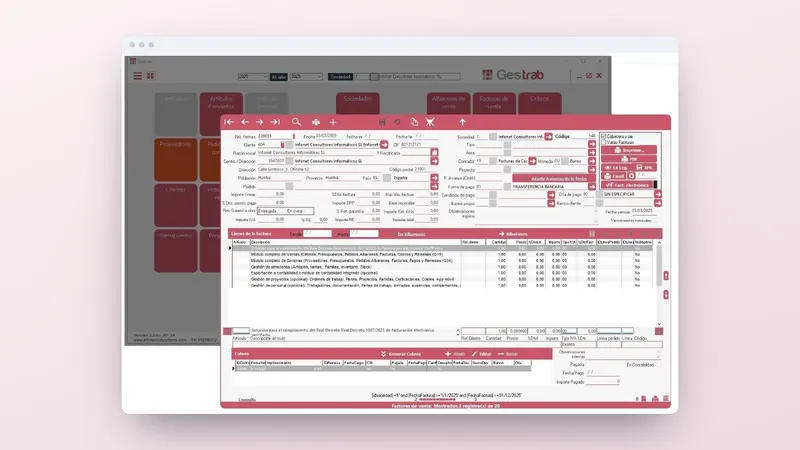
The invoice passes to the integrated accounting module if you use it, with the SII (Spanish immediate VAT reporting system) and the official returns via exchange file, or it is exported in exchange files to your accounting software.
What to do now with your next cumulative invoice
- On each open job, compare the sum of what has been invoiced with the cumulative amount of the latest certification. That way you know whether you are carrying any discrepancy.
- Move the control of each job to a table by item with the columns above and a fixed code for each item.
- Agree with each client the progress criterion and the retention criterion, and put it in writing before the next certification.
If you would rather have the certification and the invoice come from the same data as the budget and the reports, request a Gestrab demo and we will show you with a job like yours, or call +34 959 54 07 12.